I created these notes as a structured recap of Linux fundamentals. While following the video course, I installed the environment myself, typed each command in the terminal, and documented what I learned through hands-on practice.
I am grateful to the instructor for making the course freely available, allowing learners like me to study with little more than the cost of internet access. I have used a similar approach to revisit Python through four complete courses taught by different instructors. Each course gave me an opportunity to understand familiar concepts from a new perspective.
Course: Linux Fundamentals YouTube Playlist
Note 1: Setting Up a Linux Practice Environment
Downloading VirtualBox
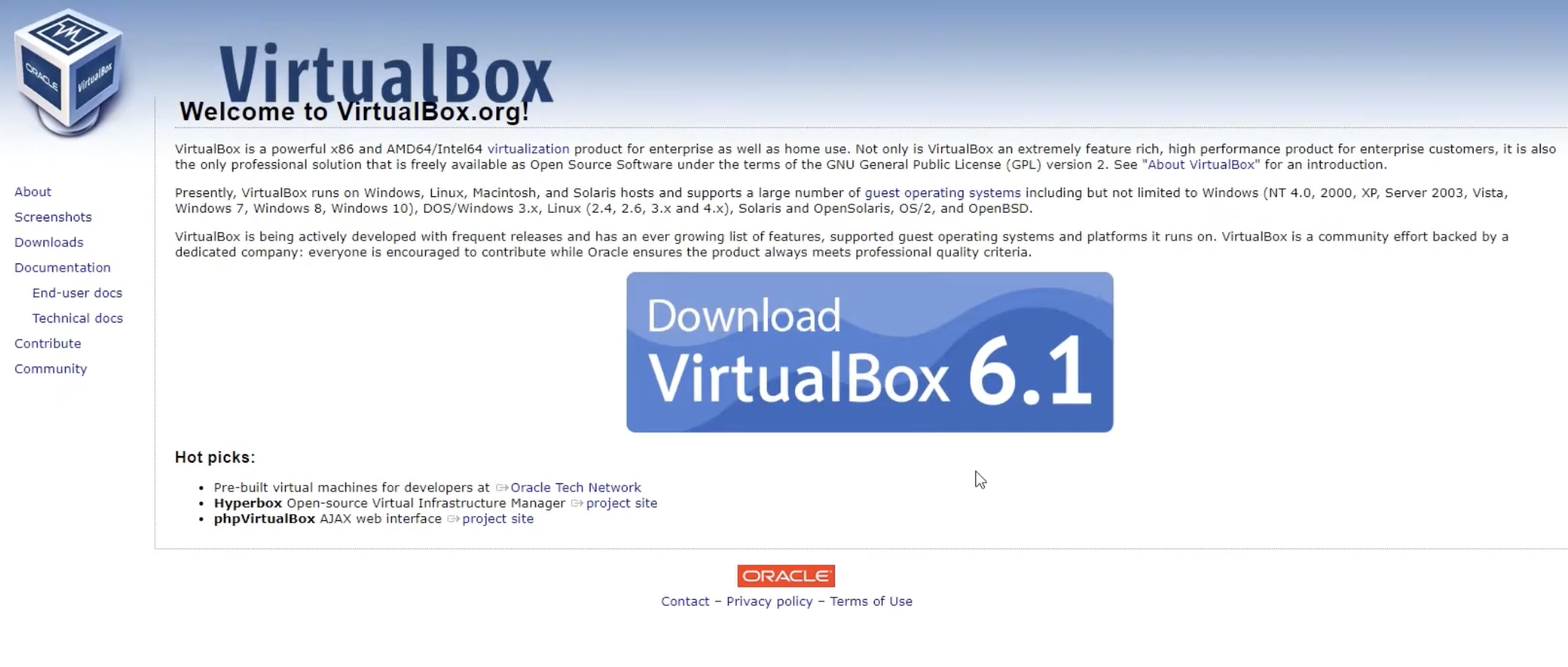
VirtualBox is a virtualization tool that allows one computer to run another operating system inside a virtual machine. In this setup, Windows acts as the host operating system, and Ubuntu runs as the guest operating system.
Downloading Oracle VM VirtualBox from the official website
Downloading Ubuntu
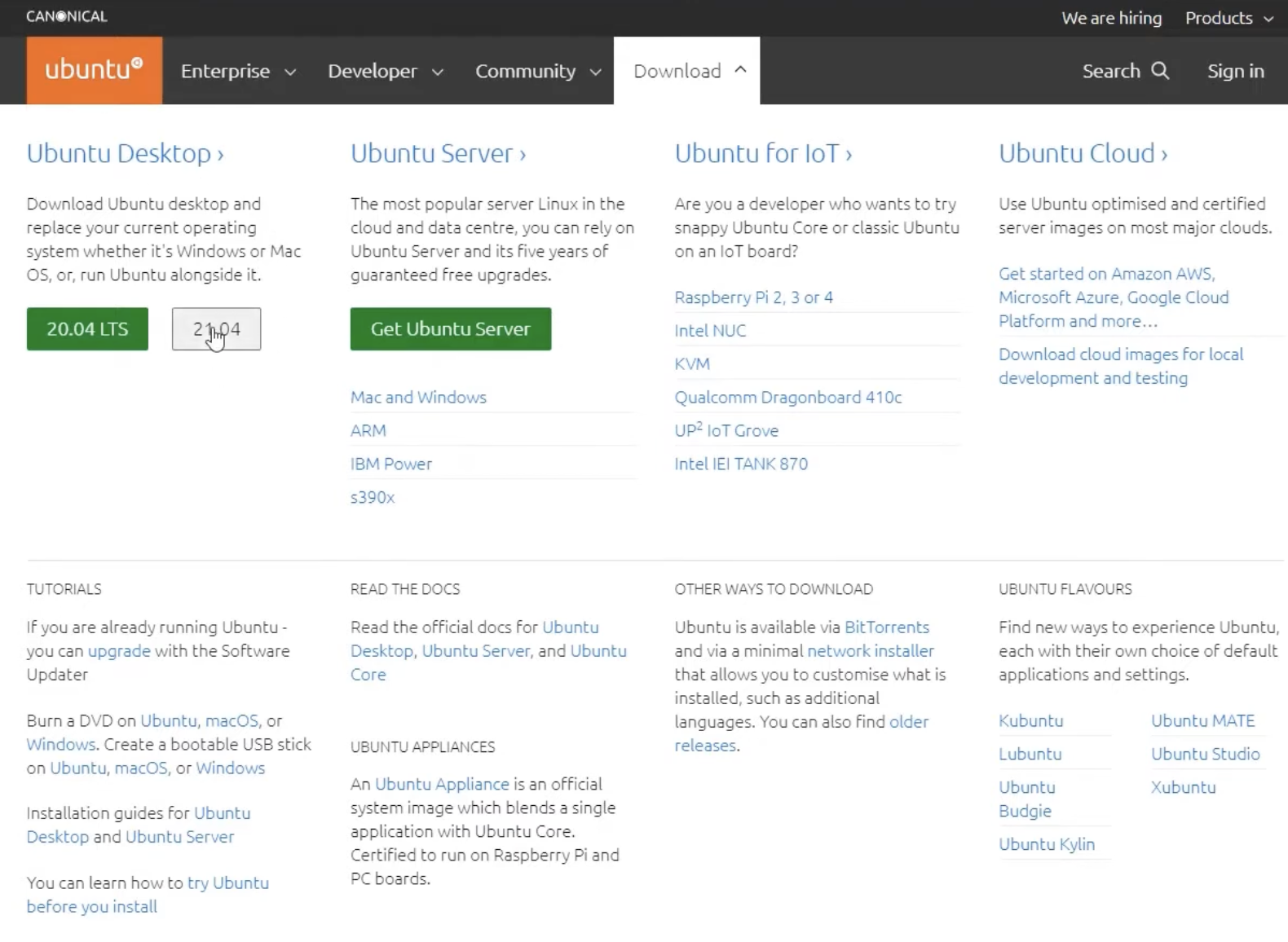
Ubuntu is a popular Linux distribution that is commonly used for learning, desktop use, servers, and cloud environments. I downloaded the Ubuntu Desktop ISO file and used it as the installer inside VirtualBox.
Selecting the Ubuntu Desktop download option
What Is an ISO File?
An ISO file is a disk image used to install an operating system. In a physical setup, an operating system might be installed from a DVD or USB drive. In VirtualBox, the ISO file can be attached like a virtual installation disk.
Installing VirtualBox
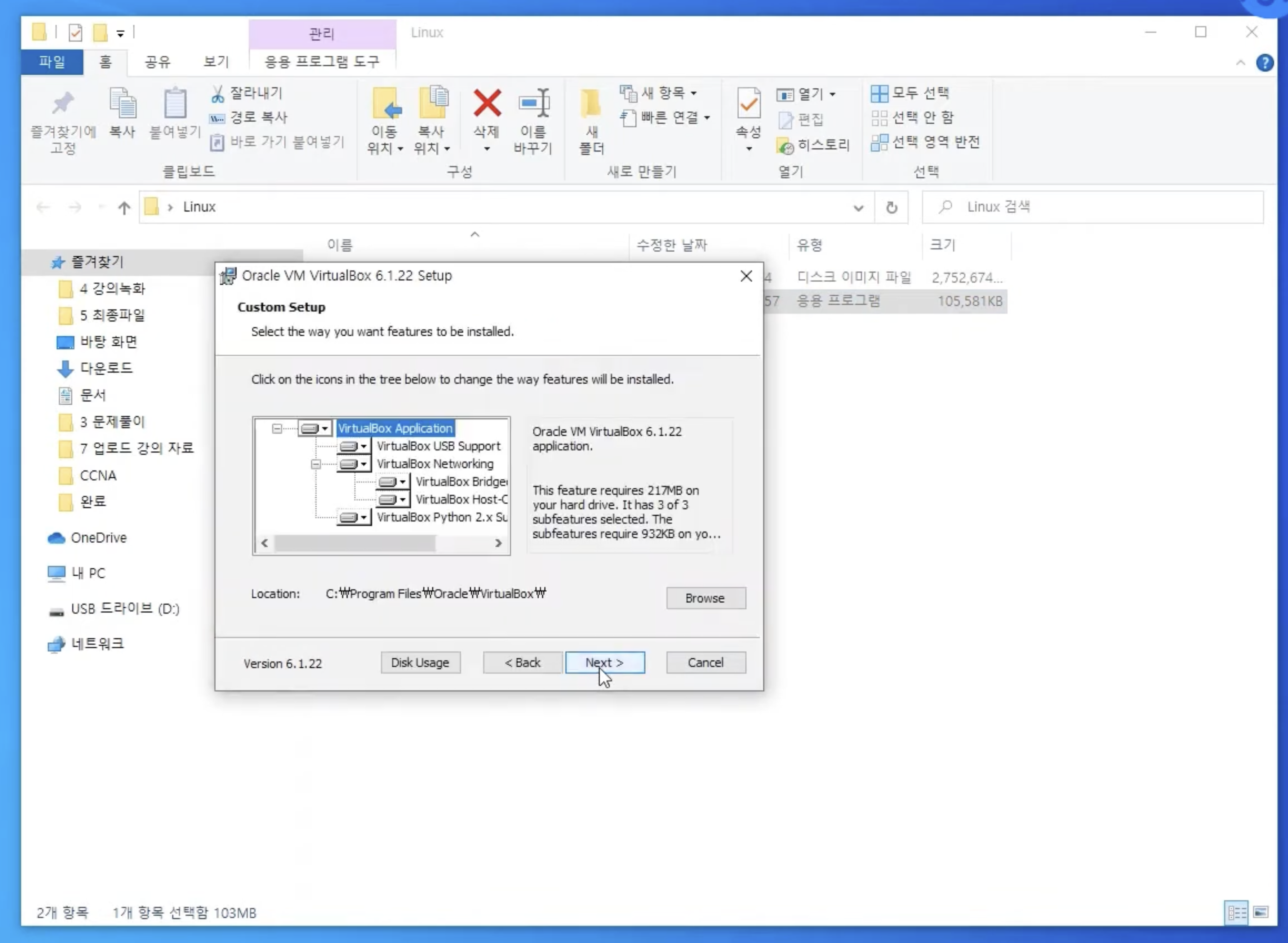
After downloading the installer, I launched the VirtualBox setup wizard and continued with the default installation options. The installer includes components such as the main VirtualBox application, USB support, and networking support.
Installing VirtualBox with the default setup components
Why These Components Matter
- VirtualBox Networking allows the guest operating system to connect to networks.
- VirtualBox USB Support allows USB devices to be used inside virtual machines.
- The default installation options are usually enough for a beginner Linux lab.
Creating a Virtual Machine and Allocating Resources
After installing VirtualBox, I created a new virtual machine for Ubuntu. I selected Linux as the operating system type and Ubuntu as the version. Then I configured the amount of memory and storage assigned to the virtual machine.
One important part of this lecture was understanding how to allocate RAM.
RAM Allocation
RAM is the memory used while the virtual machine is running. When I assign RAM to Ubuntu in VirtualBox, that memory comes from the physical computer.
- If I assign too little RAM, Ubuntu may run slowly.
- If I assign too much RAM, the host operating system may become slow.
- For a basic Ubuntu lab, 2 GB or more is usually enough for simple practice.
- The best setting depends on how much total RAM the physical computer has.
1
2
| Host OS: the main operating system running on the physical computer
Guest OS: the operating system running inside the virtual machine
|
Creating a Virtual Hard Disk
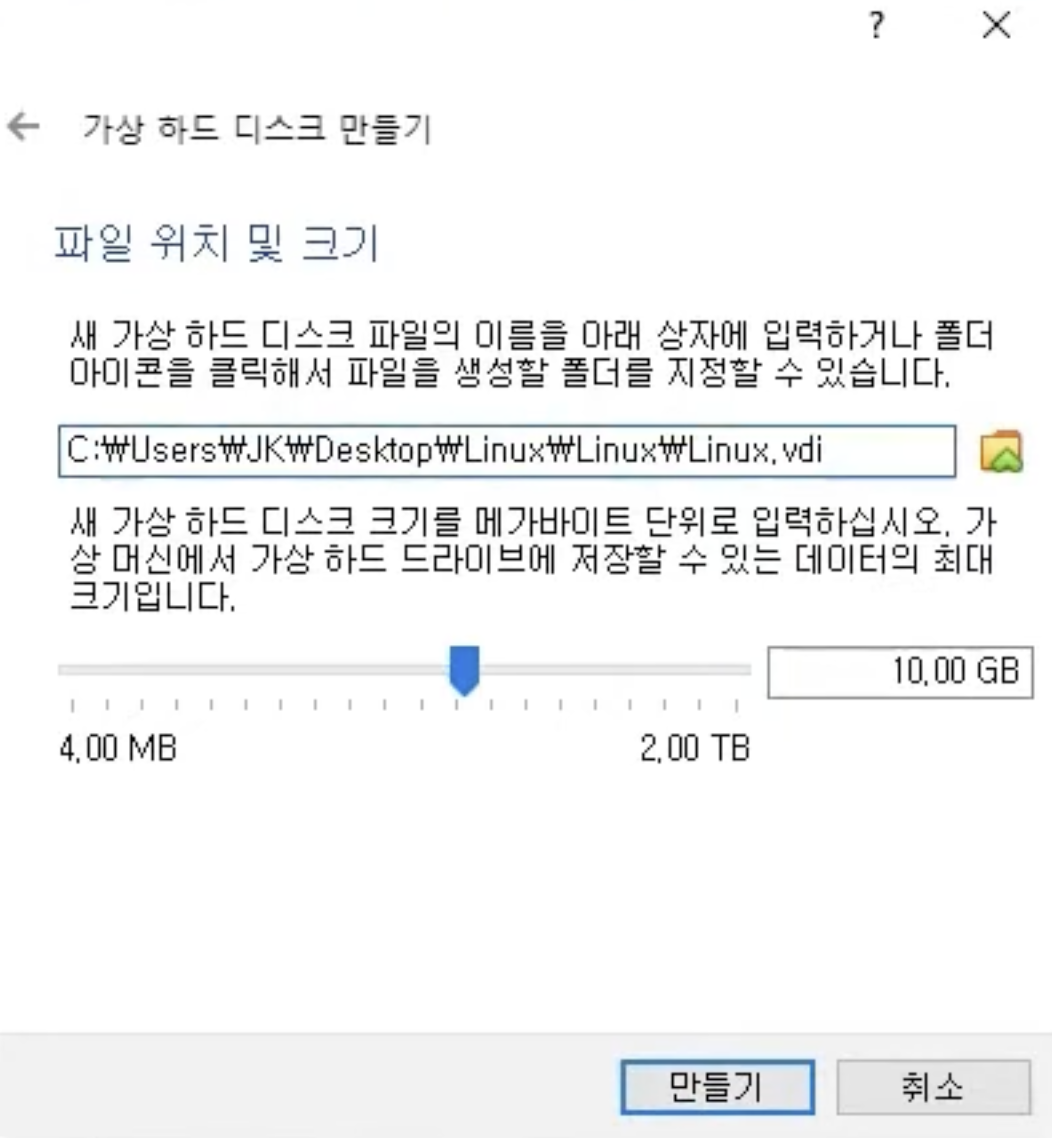
A virtual machine does not use a physical hard drive directly. Instead, it stores its operating system and files inside a virtual disk file. In this lecture, I created a virtual disk named Linux.vdi and assigned it 10 GB of storage.
Creating a virtual hard disk for the Ubuntu virtual machine
VDI
VDI stands for Virtual Disk Image. It is the virtual hard disk format used by VirtualBox. To the Ubuntu guest operating system, the VDI file appears like a normal hard drive.
Booting Ubuntu
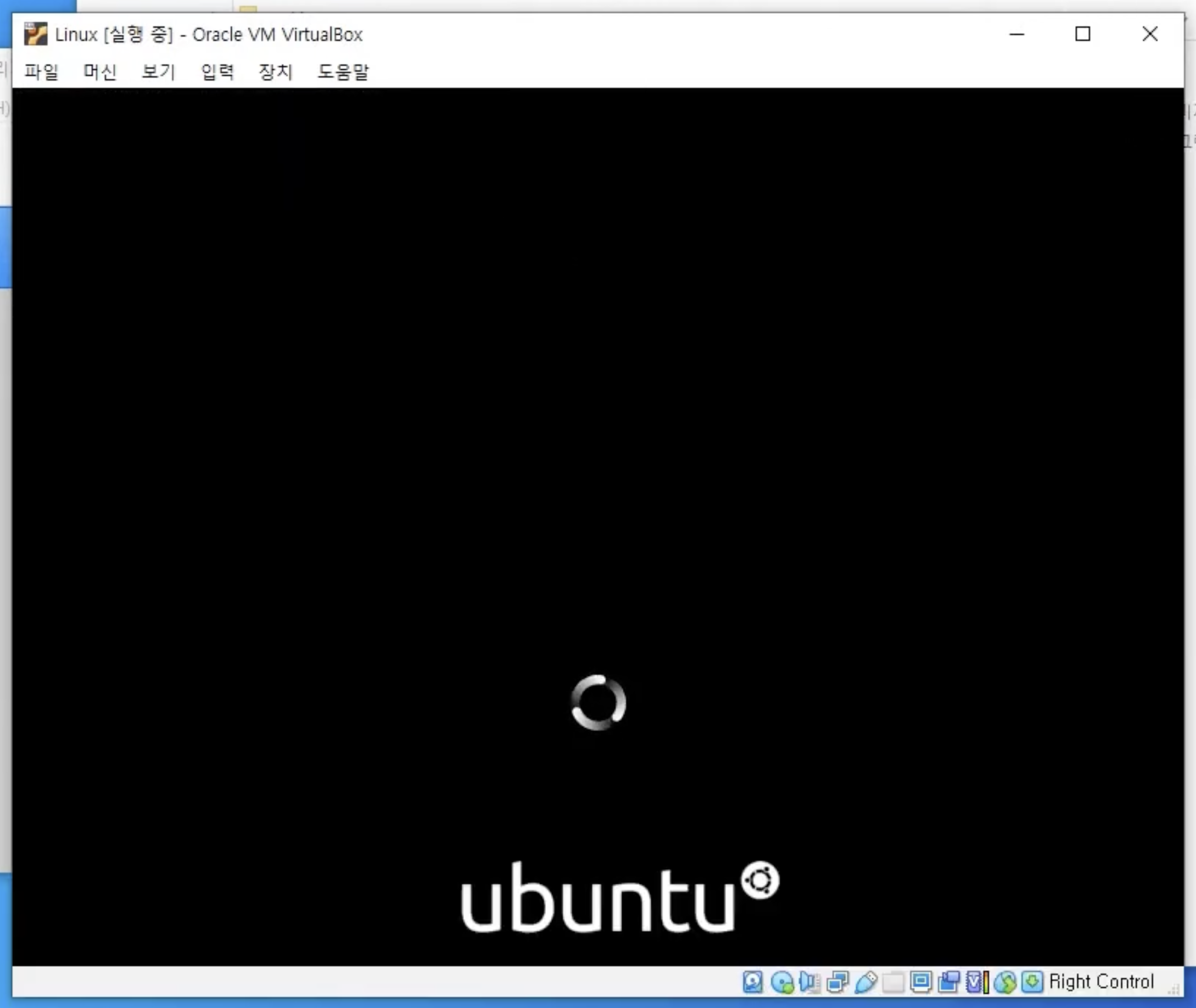
After creating the virtual machine and attaching the Ubuntu ISO file, I started the machine. The Ubuntu boot screen appeared inside the VirtualBox window.
Ubuntu booting inside Oracle VM VirtualBox
The bottom-right corner shows Right Control, which is the VirtualBox Host Key. It can be used to release keyboard or mouse control from the virtual machine back to the host computer.
Ubuntu Installation Screen
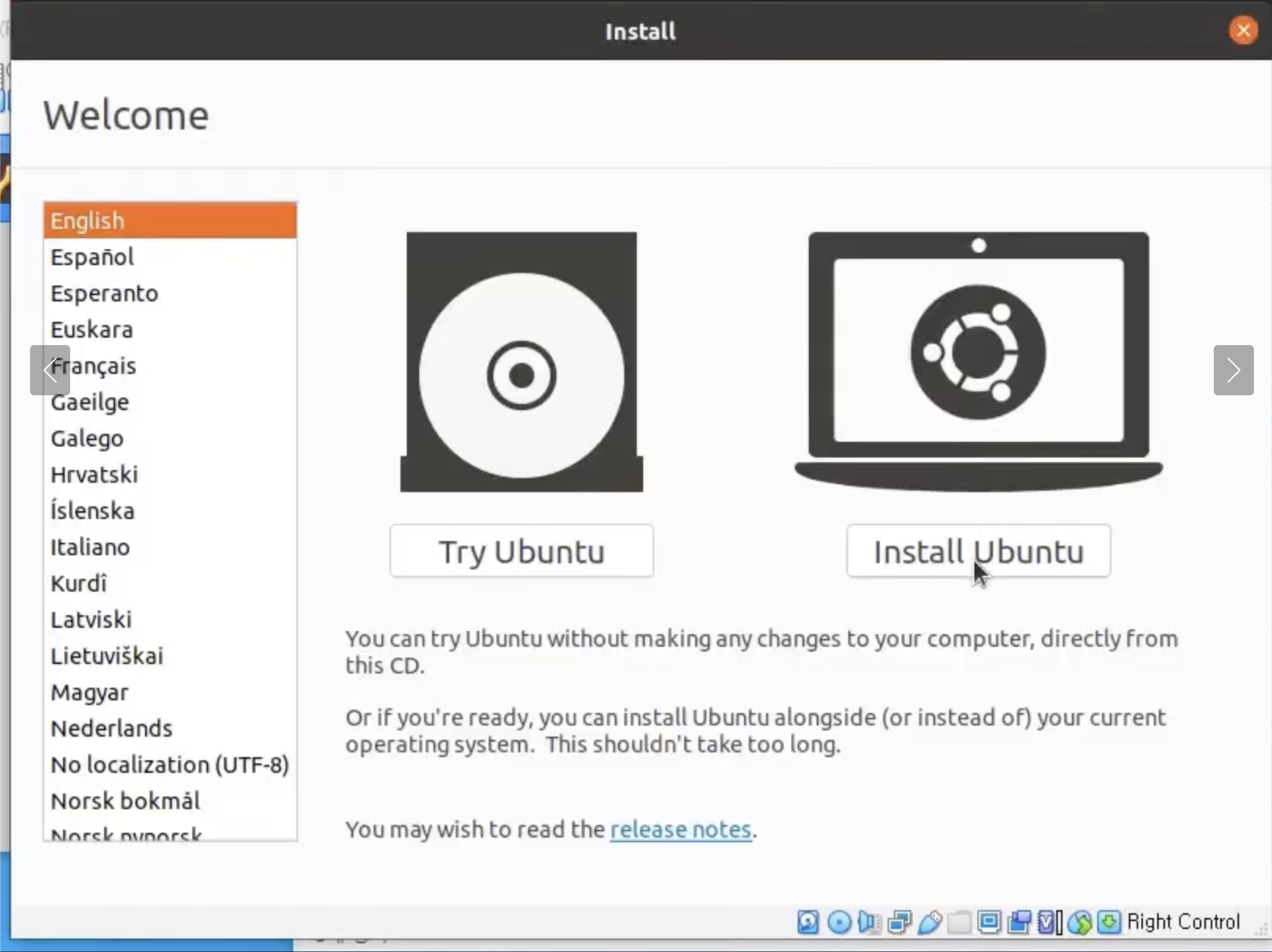
The Ubuntu installer provides two main choices: Try Ubuntu and Install Ubuntu.
Ubuntu installation welcome screen
Try Ubuntu vs. Install Ubuntu
Try Ubuntu: runs Ubuntu temporarily without installing it.Install Ubuntu: installs Ubuntu onto the virtual hard disk.
For this lab, I selected Install Ubuntu so I could create a reusable Linux practice environment.
Ubuntu Login Screen
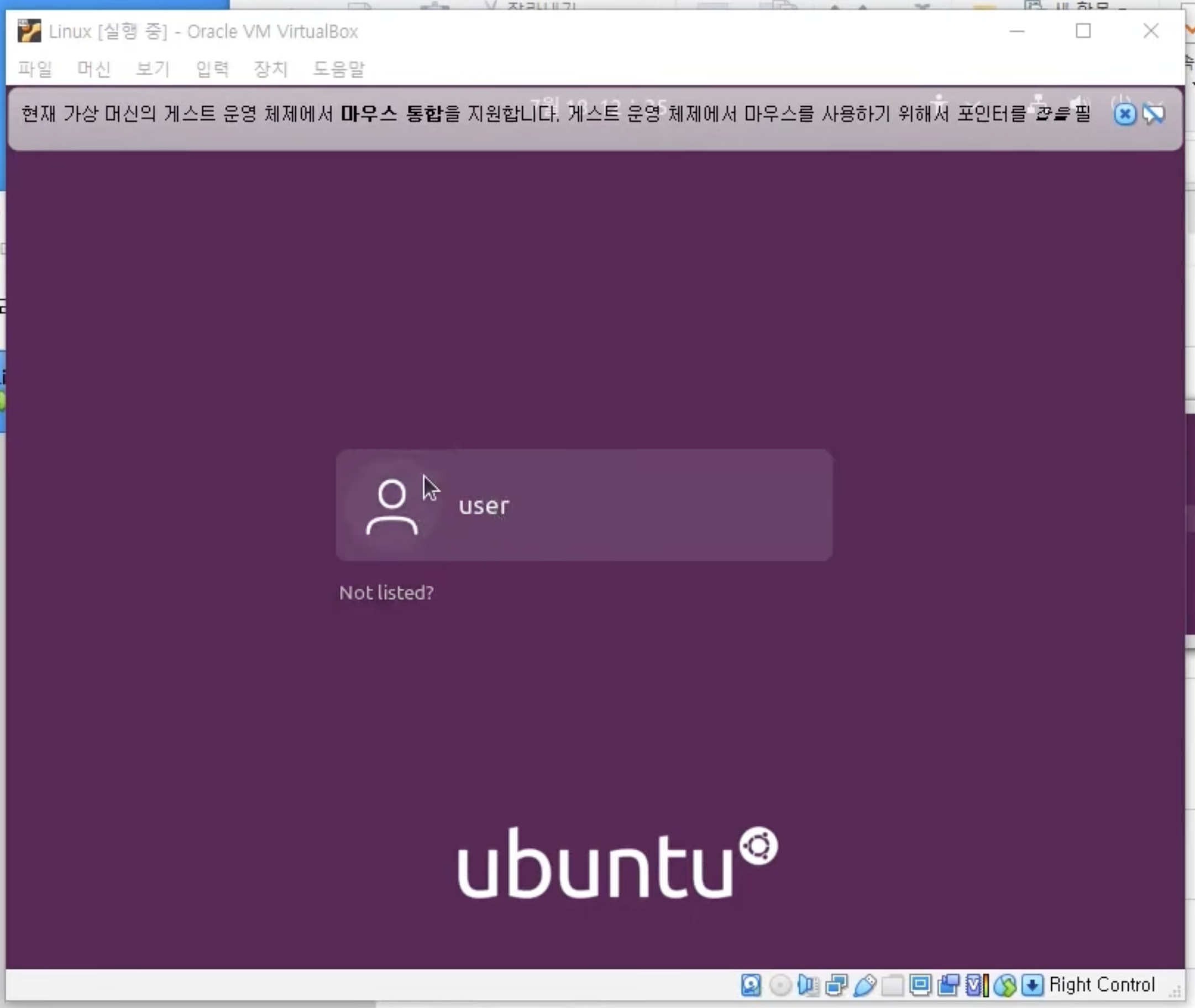
After the installation completed, the virtual machine rebooted into Ubuntu and displayed the login screen. From here, I could select the user account and sign in to the Ubuntu desktop.
Ubuntu login screen after installation
The message at the top indicates that the guest operating system supports mouse integration. This makes it easier to move the mouse between the host operating system and the virtual machine.
Note 2: Basic Terminal Commands and Command History
Printing Text with echo
Checking Time Settings with timedatectl
The timedatectl command displays the system clock and time configuration managed by systemd.
Its output can include:
- Local time: the current time in the configured time zone.
- Universal time: the current Coordinated Universal Time (UTC).
- RTC time: the hardware real-time clock value.
- Time zone: the system’s configured geographic time zone.
- System clock synchronized: whether the system clock is synchronized.
- NTP service: whether network-based time synchronization is active.
This command is useful when checking a Linux machine’s time zone or diagnosing incorrect system time.
Clearing the Terminal with clear
Viewing Previous Commands with history
Example:
1
2
3
4
| 1 echo "Hello, Linux"
2 timedatectl
3 clear
4 history
|
Command history is useful for reviewing previous work, finding a long command, and avoiding unnecessary retyping.
Recalling Commands with the Up Arrow Key
Pressing the Up Arrow key recalls an earlier command at the prompt. Pressing it repeatedly moves backward through the command history.
1
| Press Up Arrow -> review the command -> edit if needed -> press Enter
|
This method is useful when I want to inspect or modify a previous command before running it again.
Repeating the Last Command with !!
The !! history expansion runs the immediately preceding command again.
Note 3: Date Commands
echo
Prints text or an environment variable value.
date
Displays the current local date and time.
1
| Sat Jun 27 10:30:00 EDT 2026
|
which
Shows the path to a command’s executable file.
sudo apt install ncal
Installs the ncal calendar package.
1
2
3
4
5
| Reading package lists... Done
Building dependency tree... Done
The following NEW packages will be installed:
ncal
Setting up ncal...
|
clear
Clears the visible terminal screen.
1
| [The terminal display is cleared.]
|
cal
Displays the current month’s calendar.
1
2
3
4
5
6
7
| June 2026
Su Mo Tu We Th Fr Sa
1 2 3 4 5 6
7 8 9 10 11 12 13
14 15 16 17 18 19 20
21 22 23 24 25 26 27
28 29 30
|
cal [year]
Displays all twelve months of a specified year.
1
2
3
4
5
6
7
8
9
10
11
12
13
| 2026
January February March
... ... ...
April May June
... ... ...
July August September
... ... ...
October November December
... ... ...
|
cal [month] [year]
Displays a specified month.
1
2
3
4
5
6
7
| June 2026
Su Mo Tu We Th Fr Sa
1 2 3 4 5 6
7 8 9 10 11 12 13
14 15 16 17 18 19 20
21 22 23 24 25 26 27
28 29 30
|
cal -y
Displays all twelve months of the current year.
1
2
3
| 2026
January February March April May June
July August September October November December
|
date -u
Displays the current time in UTC.
1
| Sat Jun 27 14:30:00 UTC 2026
|
date --universal
Displays UTC time, equivalent to date -u.
1
| Sat Jun 27 14:30:00 UTC 2026
|
cal -A [number] [month] [year]
Includes a specified number of months after the selected month.
1
2
| June 2026 July 2026 August 2026
... ... ...
|
cal -B [number] [month] [year]
Includes a specified number of months before the selected month.
1
2
| April 2026 May 2026 June 2026
... ... ...
|
Note 4: Manual Commands
1. Open a Command Manual
1
2
3
4
5
6
7
| LS(1) User Commands LS(1)
NAME
ls - list directory contents
SYNOPSIS
ls [OPTION]... [FILE]...
|
man opens the manual page for a command. Press q to exit the manual.
2. List Directory Contents
1
2
| Desktop Documents Downloads Music
Pictures Public Templates Videos
|
ls displays visible files and directories in the current directory.
3. Include Hidden Files
1
2
3
| . .. .bash_history .bashrc .cache .config
.local .profile .ssh Desktop Documents Downloads
Music Pictures Public Templates Videos
|
-a means --all. It includes entries whose names begin with ., including hidden files.
4. Use the Long Option
1
2
3
| . .. .bash_history .bashrc .cache .config
.local .profile .ssh Desktop Documents Downloads
Music Pictures Public Templates Videos
|
--all is the long form of -a and produces the same result.
5. Open the Calendar Manual
1
2
3
4
5
6
7
| CAL(1) User Commands CAL(1)
NAME
cal, ncal - display a calendar and the date of Easter
SYNOPSIS
cal [options] [[[day] month] year]
|
The manual shows the syntax and available options for cal.
6. Search Manual Descriptions
1
2
| cal (1) - displays a calendar and the date of Easter
ncal (1) - displays a calendar and the date of Easter
|
man -k searches command names and manual descriptions for a keyword. It is equivalent to apropos.
7. Search for the Keyword directory
1
2
3
4
5
6
7
8
| basename (1) - strip directory and suffix from filenames
chdir (1) - change working directory
dir (1) - list directory contents
find (1) - search for files in a directory hierarchy
ls (1) - list directory contents
mkdir (1) - make directories
pwd (1) - print name of current/working directory
...
|
The search can return many commands from different manual sections. The number in parentheses identifies the manual section.
8. Display Three Months
1
2
3
4
5
6
7
| June 2021 July 2021 August 2021
Su Mo Tu We Th Fr Sa Su Mo Tu We Th Fr Sa Su Mo Tu We Th Fr Sa
1 2 3 4 5 1 2 3 1 2 3 4 5 6 7
6 7 8 9 10 11 12 4 5 6 7 8 9 10 8 9 10 11 12 13 14
13 14 15 16 17 18 19 11 12 13 14 15 16 17 15 16 17 18 19 20 21
20 21 22 23 24 25 26 18 19 20 21 22 23 24 22 23 24 25 26 27 28
27 28 29 30 25 26 27 28 29 30 31 29 30 31
|
-3 displays the previous, current, and next month.
9. Display Three Months with Julian Days
1
2
3
4
5
6
7
| June 2021 July 2021 August 2021
Su Mo Tu We Th Fr Sa Su Mo Tu We Th Fr Sa
152 153 154 155 156 182 183 184
157 158 159 160 161 162 163 185 186 187 188 189 190 191
164 165 166 167 168 169 170 192 193 194 195 196 197 198
171 172 173 174 175 176 177 199 200 201 202 203 204 205
178 179 180 181 206 207 208 209 210 211 212
|
-j displays each date as its day number within the year.
10. Combine Short Options
1
| [The same three-month Julian-day calendar is displayed.]
|
Short options can be combined. -3j is equivalent to -3 -j.
Manual Command Summary
| Command | Purpose |
|---|
man command | Open a command’s manual page |
man -k keyword | Search manual names and descriptions |
ls -a | Include hidden directory entries |
ls --all | Long form of ls -a |
cal -3 | Show three months |
cal -3 -j | Show three months using day-of-year numbers |
cal -3j | Combined form of cal -3 -j |
Note 5: Input and Output
Linux commands use three standard data streams:
1
2
3
| 0 = standard input (stdin)
1 = standard output (stdout)
2 = standard error (stderr)
|
1
2
3
4
5
| hello
hello
linux
linux
^C
|
With no filename, cat reads standard input and copies each line to standard output. Each entered line appears twice: once as keyboard input and once as cat output. Ctrl+C interrupts the command; Ctrl+D ends input normally.
2. Redirect Standard Output with 1>
1> redirects standard output to output.txt. The entered lines are saved in the file instead of being printed again by cat.
3. Use > as the Standard Output Shortcut
> is equivalent to 1>. It overwrites the existing contents of output.txt.
4. Append Output with >>
>> adds new output to the end of the file without deleting its current contents.
1
2
3
4
| hello2
linux2
hello3
linux3
|
5. List the Current Directory
1
2
| Desktop Documents Downloads Music output.txt
Pictures Public Templates Videos
|
ls writes the directory listing to standard output.
6. Save the Directory Listing
The directory listing is redirected to list.txt instead of the terminal.
1
2
3
4
| hello2
linux2
hello3
linux3
|
0< connects output.txt to standard input. cat reads the file and writes its contents to standard output.
1
2
3
4
| hello2
linux2
hello3
linux3
|
< is equivalent to 0<.
9. Pass the Filename as an Argument
1
2
3
4
| hello2
linux2
hello3
linux3
|
This produces the same visible result, but output.txt is passed directly to cat as a filename rather than through input redirection.
10. Display an Error
1
2
| cat: invalid option -- 'a'
Try 'cat --help' for more information.
|
The invalid option message is written to standard error, not standard output.
11. Redirect Standard Error with 2>
1
| [No terminal error output]
|
2> redirects standard error to error.txt.
1
2
| cat: invalid option -- 'a'
Try 'cat --help' for more information.
|
Redirection Summary
| Operator | Meaning |
|---|
0< or < | Read standard input from a file |
1> or > | Write standard output to a file and overwrite it |
>> | Append standard output to a file |
2> | Write standard error to a file |
Note 6: Piping Commands
The examples below use a date format in which the year is the first space-separated field. The exact date output depends on the system locale.
1. Display the Current Date
1
| 2021. 07. 18. (Sun) 19:01:18 KST
|
date writes the current date and time to standard output.
2. Redirect Standard Output to a File
1> redirects file descriptor 1, which is standard output, to date.txt. It creates the file or overwrites its existing contents.
3. Read a File and Extract Its First Field
1
| cut < date.txt --delimiter " " --field 1
|
< date.txt sends the file to the command’s standard input.--delimiter " " separates the input at each space.--field 1 selects the first field.
4. Pipe date Directly into cut
1
| date | cut --delimiter " " --field 1
|
| sends the standard output of date directly to the standard input of cut. This produces the same result without an intermediate file.
5. Pipe the Result and Save It
1
| date | cut --delimiter " " --field 1 > date.txt
|
cut extracts the first field, and > saves that processed result to date.txt. The file now contains:
6. Run the Pipeline Again
1
| date | cut --delimiter " " --field 1
|
Without the final > date.txt, the processed result is displayed in the terminal.
7. Redirection Before a Pipe
1
| date > year.txt | cut --delimiter " " --field 1
|
> sends the output of date to year.txt before cut can receive it. The file contains the full date, but cut receives no input from the pipe.
8. Save and Pipe the Same Output with tee
1
| date | tee year.txt | cut --delimiter " " --field 1
|
tee duplicates the incoming data:
- One copy is saved to
year.txt. - The other copy continues through the pipe to
cut.
The terminal displays the first field, while year.txt stores the full date.
Data Flow Summary
1
| date -> standard output -> pipe -> cut -> terminal
|
1
2
| date -> pipe -> tee -> year.txt
-> pipe -> cut -> terminal
|
Note 7: Linux Files and Directory Structure
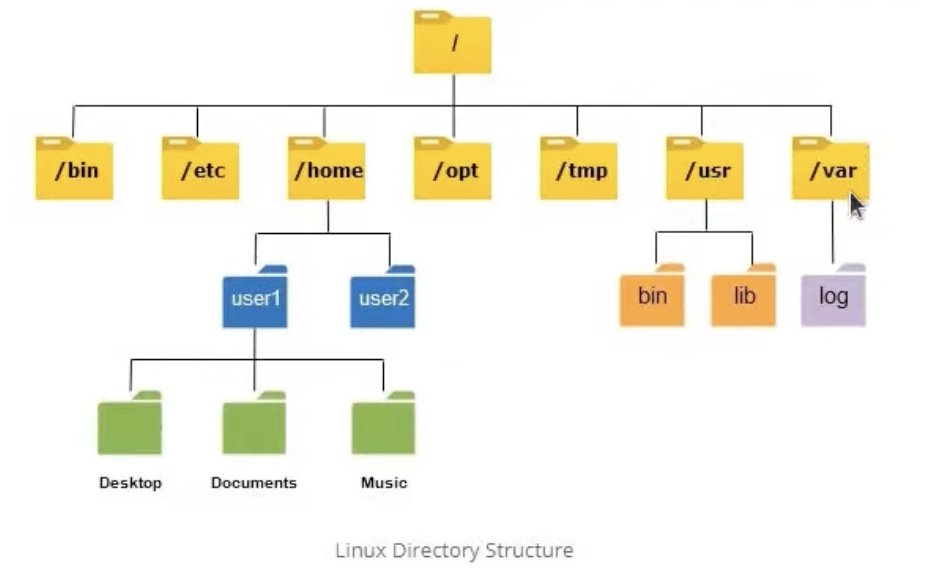
Linux Directory Hierarchy
Linux uses a single directory tree that begins at the root directory, /.
A simplified Linux directory structure
| Directory | Purpose |
|---|
/ | The root of the entire filesystem |
/bin | Essential command binaries |
/etc | System configuration files |
/home | Personal directories for regular users |
/opt | Optional third-party software |
/tmp | Temporary files |
/usr | User applications, libraries, and shared data |
/usr/bin | Most user commands |
/usr/lib | Libraries used by programs |
/var | Frequently changing data |
/var/log | System and application logs |
For example, /home/user/Documents starts at /, enters home, then the user’s home directory, and finally Documents.
1. Print the Current Directory
pwd means print working directory. It displays the absolute path of the current location.
2. List the Current Directory
1
2
| a.txt Desktop Documents Downloads Music
Pictures Public Templates Videos
|
With no path, ls displays the contents of the current directory.
3. List a Directory by Absolute Path
1
2
| a.txt Desktop Documents Downloads Music
Pictures Public Templates Videos
|
An absolute path begins with /. This command lists /home/user regardless of the current location.
4. Display a Long Listing
1
2
3
4
5
| total 32
-rw-rw-r-- 1 user user 0 Jul 19 14:34 a.txt
drwxr-xr-x 2 user user 4096 Jul 18 12:35 Desktop
drwxr-xr-x 2 user user 4096 Jul 18 12:35 Documents
drwxr-xr-x 2 user user 4096 Jul 18 19:43 Downloads
|
-l displays one entry per line with detailed metadata:
1
| permissions links owner group size modified time name
|
- The first character is
d for a directory or - for a regular file. - The remaining
rwx characters show read, write, and execute permissions.
5. Display Human-Readable Sizes
1
2
3
4
5
| total 32K
-rw-rw-r-- 1 user user 0 Jul 19 14:34 a.txt
drwxr-xr-x 2 user user 4.0K Jul 18 12:35 Desktop
drwxr-xr-x 2 user user 4.0K Jul 18 12:35 Documents
drwxr-xr-x 2 user user 4.0K Jul 18 19:43 Downloads
|
-h makes sizes easier to read by using units such as K, M, and G.
6. Include Hidden Files
1
2
3
| . .. .bash_history .bash_logout .bashrc .config
.local .profile Desktop Documents Downloads Music
Pictures Public Templates Videos
|
Files beginning with . are hidden from a normal ls listing. -a includes them.
7. Combine Hidden and Long Listings
1
2
3
4
5
6
| total 96
drwxr-x--- 16 user user 4096 Jul 19 14:34 .
drwxr-xr-x 3 root root 4096 Jul 18 12:35 ..
-rw------- 1 user user ... Jul 19 14:34 .bash_history
-rw-r--r-- 1 user user ... Jul 18 12:35 .bashrc
...
|
Multiple options can be used together. ls -a -l can also be written as ls -al.
8. Enter a Child Directory
1
| [Working directory: /home/user/Downloads]
|
cd means change directory. Downloads is a relative path because it starts from the current directory.
The file is inside /home/user/Downloads.
9. Move to the Parent Directory
1
| [Working directory: /home/user]
|
.. represents the parent of the current directory.
1
2
| a.txt Desktop Documents Downloads Music
Pictures Public Templates Videos
|
10. Move Up to /home
1
| [Working directory: /home]
|
/home contains the home directories of regular users.
11. Move Up to the Root Directory
1
2
| bin boot dev etc home lib media mnt opt
proc root run sbin srv sys tmp usr var
|
/ is the highest directory in the Linux filesystem hierarchy.
12. Use a Relative Path from Root
1
| [Working directory: /etc]
|
Because the current directory was /, the relative name etc resolves to /etc.
13. Use Absolute Paths
1
| [Working directory: /home/user]
|
1
| [Working directory: /etc]
|
Absolute paths begin with / and work from any current directory.
14. Return to the Home Directory
1
| [Working directory: /home/user]
|
Running cd without an argument returns to the current user’s home directory.
15. Navigate with Directory Names
1
| [Working directory: /home/user/Desktop]
|
1
| [Working directory: /home/user]
|
1
| [Working directory: /home/user/Downloads]
|
A trailing / is optional when the path identifies a directory.
Path Summary
| Path | Meaning |
|---|
/ | Root directory |
/home/user | Absolute path to the user’s home |
Downloads | Relative path from the current directory |
. | Current directory |
.. | Parent directory |
~ | Current user’s home directory |
Note 8: Creating and Deleting Files and Directories
1. Create an Empty File
touch creates an empty file when the file does not exist. If it already exists, touch updates its timestamp without deleting its contents.
2. Create a File with Text
1
| echo "linux" > linux.txt
|
echo produces the text, and > writes it to linux.txt. The file contains:
> creates the file or overwrites its existing contents.
3. Create a Directory
mkdir creates a directory named korea in the current working directory.
4. Confirm the Current Location
The following relative paths begin from /home/user.
5. Create a Directory with an Absolute Path
The absolute path creates busan directly inside /home/user.
6. Attempt to Create a Nested Directory
1
| mkdir: cannot create directory 'china/shanghai': No such file or directory
|
This fails because the parent directory china does not exist.
7. Create Missing Parent Directories
1
| mkdir -p china/shanghai
|
-p creates any missing parent directories. It creates china first and then shanghai inside it.
8. Create Multiple Directories
Separate arguments create two directories: seoul and gangnam.
9. Create One Directory Containing a Space
Quotation marks keep the words together as one directory name: seoul gangnam.
10. Delete One File
rm permanently removes a file. It does not normally move the file to a trash folder.
11. Create Multiple Files
1
| touch file1.txt file2.txt file3.txt
|
One touch command can create multiple files by passing multiple filenames.
12. Delete Multiple Files by Name
1
| rm file1.txt file2.txt file3.txt
|
One rm command can remove multiple explicitly named files.
13. Delete Files with a Pattern
1
| touch file1.txt file2.txt file3.txt
|
* is a shell wildcard. file*.txt matches .txt files whose names begin with file.
14. Delete All Matching Text Files
1
| touch file1.txt file2.txt file3.txt
|
*.txt matches every visible filename ending in .txt in the current directory. The pattern should be checked carefully before deletion.
15. Attempt to Delete a Directory with rm
1
| rm: cannot remove 'seoul': Is a directory
|
Plain rm does not remove a directory.
16. Delete a Directory Recursively
-r recursively removes the directory and everything inside it.
17. Enter an Empty Directory
1
| [Working directory: /home/user/busan]
|
The new busan directory is empty.
18. Create and Verify a File
The file now exists inside /home/user/busan.
19. Remove a Directory by Absolute Path
This removes busan and file.txt even though the shell is currently inside that directory. The prompt may temporarily continue to display the deleted path.
1
| [Working directory: /home/user]
|
Moving to the parent returns the shell to an existing directory.
20. Verify the Remaining Directories
1
2
| china Desktop Documents Downloads gangnam korea
Music Pictures Public "seoul gangnam" Templates Videos
|
busan and seoul are gone. china, korea, gangnam, and seoul gangnam remain.
Command Summary
| Command | Purpose |
|---|
touch file | Create an empty file or update its timestamp |
mkdir directory | Create a directory |
mkdir -p path | Create nested directories and missing parents |
rm file | Delete a file |
rm -r directory | Recursively delete a directory |
* | Match multiple filenames |
rm -r and wildcard patterns can delete many files permanently. Verify the path and pattern before pressing Enter.
Note 9: Copying and Moving Files and Directories
1. Create a Source File
This creates an empty file named file1.txt.
2. Copy and Rename a File
cp copies the source to the destination. file1.txt remains, and a separate copy named file2.txt is created.
3. Create a Destination Directory
The seoul directory will be used as the copy destination.
4. Copy a File Using a Relative Path
./seoul refers to the seoul directory inside the current directory.
5. Copy a File Using an Absolute Path
1
| cp file2.txt /home/user/seoul
|
The absolute destination path works regardless of the current directory.
1
| /home/user/seoul/file2.txt
|
6. Copy Multiple Files with a Wildcard
*.txt matches every visible .txt file in the current directory. Matching files are copied into seoul.
1
2
| seoul/file1.txt
seoul/file2.txt
|
Existing files with the same names may be overwritten.
7. Create Another Directory
This creates an empty directory named busan.
8. Copy a Directory Recursively
-r recursively copies a directory and everything inside it.
Plain cp copies files; copying directories requires cp -r.
9. Rename a File with mv
When the destination is a new name in the same directory, mv renames the file.
10. Rename a Directory with mv
The original busan directory is renamed to daegu.
The copied directory seoul/busan is separate and keeps its original name.
11. Move a File into a Directory
Because daegu is an existing directory, file2.txt is moved inside it.
The original file2.txt no longer exists in the current directory.
12. Attempt to Move a Misspelled Directory
1
| mv: cannot stat 'deagu': No such file or directory
|
The command fails because deagu is misspelled. The existing directory is named daegu.
13. Move the Correct Directory
The daegu directory and its contents move inside seoul.
1
2
3
4
5
6
| seoul/
├── busan/
├── daegu/
│ └── file2.txt
├── file1.txt
└── file2.txt
|
cp vs. mv
| Command | Behavior |
|---|
cp source destination | Copies a file and keeps the original |
cp -r source destination | Copies a directory recursively |
mv source new-name | Renames a file or directory |
mv source directory | Moves a file or directory to another location |
cp and mv can overwrite an existing destination with the same name. Verify the destination before running the command.
Note 10: Using the Nano Editor
GNU Nano is a terminal-based text editor. Its main keyboard shortcuts are displayed at the bottom of the screen.
1
2
| ^ = Ctrl
M- = Alt or Meta
|
For example, ^O means Ctrl+O, and M-U means Alt+U.
1. Open or Create a File
1
| [Nano opens file.txt in the terminal]
|
- If
file.txt exists, Nano loads its contents. - If it does not exist, Nano opens an empty buffer and creates the file when it is saved.
2. Edit the Text Buffer
Text can be entered directly at the cursor position.
1
2
3
4
5
6
7
| Hello
Linux
a
a
a
|
The filename appears in the title bar. An asterisk after the filename means the buffer has unsaved changes:
3. Save with Write Out
1
| File Name to Write: file.txt
|
Ctrl+O opens the Write Out prompt. Press Enter to confirm the filename and save the buffer.
1
| [Wrote the file to file.txt]
|
After saving, the * disappears from the title bar.
4. Exit Nano
1
| [Nano closes and returns to the shell]
|
If unsaved changes exist, Nano asks whether to save them:
1
2
3
4
| Save modified buffer?
Y = Yes
N = No
Ctrl+C = Cancel
|
5. Verify and Reopen the File
1
2
| Desktop Documents Downloads file.txt Pictures
Public seoul Templates Videos
|
The saved file now appears in the directory listing.
1
| [Nano reopens the saved contents of file.txt]
|
6. Insert Another File
1
| File to insert [from ./]: /etc/crontab
|
Ctrl+R activates Read File. After entering /etc/crontab and pressing Enter, Nano inserts that file’s contents at the current cursor position.
1
2
3
| # /etc/crontab: system-wide crontab
SHELL=/bin/sh
...
|
The inserted text becomes part of the current buffer. It does not switch the editor to /etc/crontab.
7. Search for Text
Ctrl+W, shown as Where Is, searches forward for matching text. Enter the search term and press Enter.
1
| [Cursor moves to the next occurrence of "system"]
|
Use Alt+W for the next match and Alt+Q for the previous match.
8. Search and Replace
1
| Search (to replace): system
|
Enter the replacement text:
Nano then asks whether to replace the match. The user can replace one occurrence or all matching occurrences.
9. Cut, Copy, and Paste
| Shortcut | Action |
|---|
Ctrl+K | Cut the current line or selected text |
Ctrl+U | Paste the most recently cut or copied text |
Alt+A | Start or end a text selection |
Alt+6 | Copy selected text without removing it |
To copy a block:
1
| Alt+A -> move the cursor -> Alt+6 -> Ctrl+U
|
10. Undo and Redo
| Shortcut | Action |
|---|
Alt+U | Undo the previous edit |
Alt+E | Redo an undone edit |
These shortcuts are useful after accidental changes.
11. Navigate the Buffer
| Shortcut | Action |
|---|
| Arrow keys | Move the cursor |
Ctrl+B | Move backward one character |
Ctrl+F | Move forward one character |
Alt+Space | Move to the previous word |
Ctrl+Space | Move to the next word |
Ctrl+C | Show the current cursor location |
Ctrl+_ | Go to a specific line and column |
Alt+] | Move to the matching bracket |
Ctrl+Q | Return to the previous cursor position |
12. Other Visible Nano Shortcuts
| Shortcut | Nano Label | Purpose |
|---|
Ctrl+G | Help | Open Nano help |
Ctrl+O | Write Out | Save the current buffer |
Ctrl+R | Read File | Insert another file |
Ctrl+W | Where Is | Search for text |
Ctrl+\ | Replace | Search and replace text |
Ctrl+T | Execute | Run a command or tool |
Ctrl+J | Justify | Reformat the current paragraph |
Ctrl+X | Exit | Close Nano |
Basic Nano Workflow
1
2
3
4
5
| nano file.txt
-> enter or edit text
-> Ctrl+O
-> Enter
-> Ctrl+X
|
This workflow opens a file, saves the changes, and exits the editor.
Note 12: File Archiving and Compression
1. Check the Source Files
1
| file1.txt file2.txt file3.txt
|
These three text files will be archived and compressed.
2. Create a TAR Archive
1
| tar -cvf tararchive.tar file*.txt
|
1
2
3
| file1.txt
file2.txt
file3.txt
|
tar combines multiple files into one archive:
| Option | Meaning |
|---|
-c | Create a new archive |
-v | Display processed filenames |
-f | Use the following archive filename |
file*.txt matches the three text files. A plain .tar file archives them but does not compress their contents.
3. Verify the TAR File
1
| file1.txt file2.txt file3.txt tararchive.tar
|
The source files remain, and tararchive.tar is created.
4. List TAR Archive Contents
1
2
3
| file1.txt
file2.txt
file3.txt
|
-t lists archive contents without extracting them. -f identifies the archive file.
1
| tar -xvf tararchive.tar
|
1
2
3
| file1.txt
file2.txt
file3.txt
|
-x extracts the archive, while -v displays each extracted filename.
1
| file1.txt file2.txt file3.txt tararchive.tar
|
The extracted files appear in the current directory. Existing files with the same names may be overwritten.
6. Create a ZIP Archive
1
| zip ziparchive.zip file*.txt
|
1
2
3
| adding: file1.txt (deflated 56%)
adding: file2.txt (deflated 56%)
adding: file3.txt (deflated 56%)
|
zip creates a compressed archive. deflated 56% indicates that compression reduced the file’s stored size.
7. Verify the ZIP File
1
| file1.txt file2.txt file3.txt tararchive.tar ziparchive.zip
|
The directory now contains both the TAR archive and the compressed ZIP archive.
8. Attempt an Incorrect Extraction Command
1
| Command 'uzip' not found, but there are similar commands.
|
The command fails because uzip is a spelling error.
1
2
3
4
| Archive: ziparchive.zip
inflating: file1.txt
inflating: file2.txt
inflating: file3.txt
|
unzip extracts files from a .zip archive. It may ask for confirmation when files with the same names already exist.
TAR vs. ZIP
| Format | Purpose | Compression |
|---|
.tar | Combines files into one archive | None by default |
.zip | Combines and compresses files | Yes |
TAR can also use compression options:
1
| tar -czvf archive.tar.gz file*.txt
|
1
| [Creates a gzip-compressed TAR archive]
|
Here, -z applies gzip compression.
Command Summary
| Command | Purpose |
|---|
tar -cvf archive.tar files | Create a TAR archive |
tar -tf archive.tar | List TAR contents |
tar -xvf archive.tar | Extract a TAR archive |
zip archive.zip files | Create a ZIP archive |
unzip archive.zip | Extract a ZIP archive |